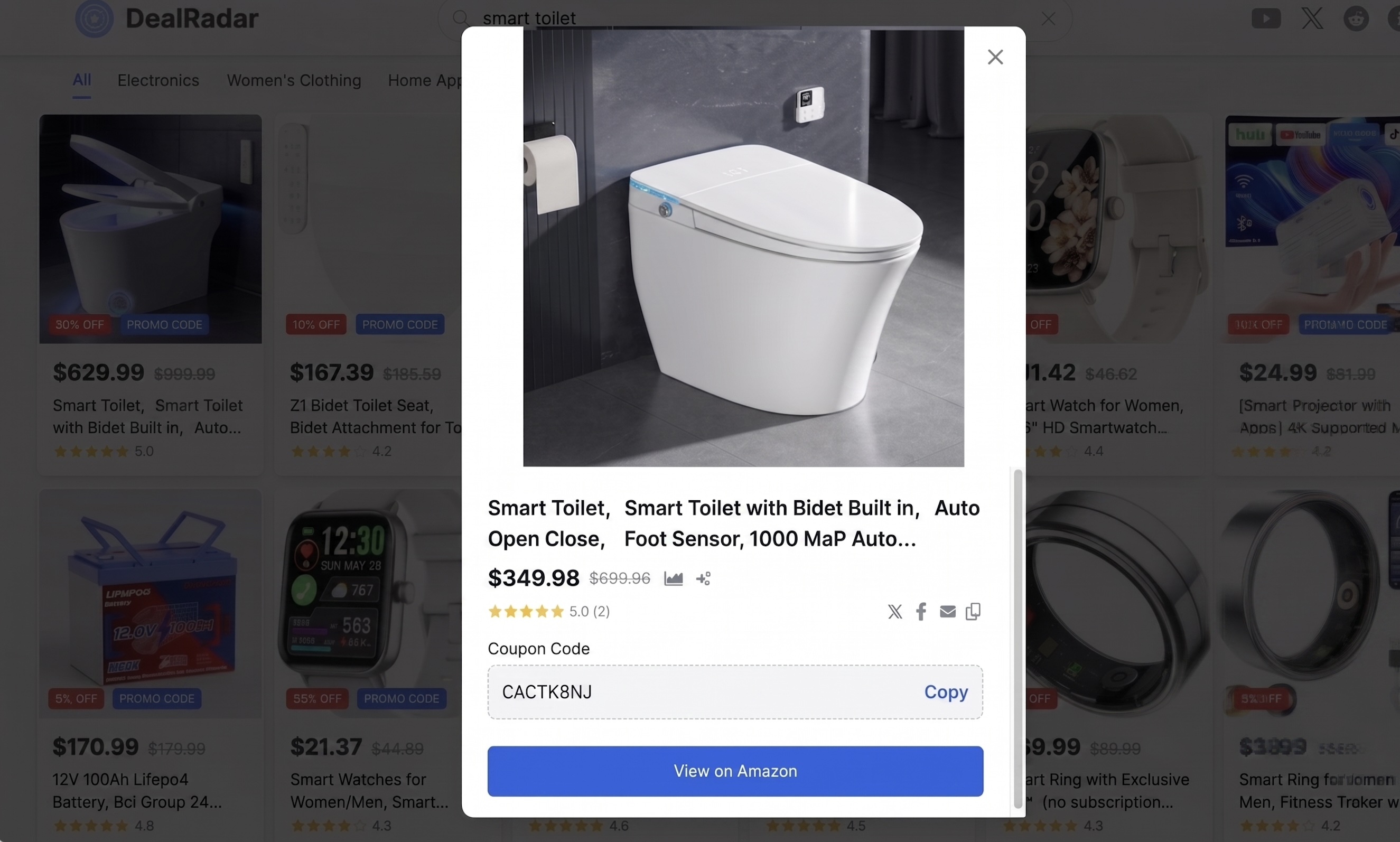
Start by browsing deals on Deal Radar. When you find a product you want, click the "Copy" button to copy the promo code and click "View on Amazon" to be redirected to Amazon.
Click on a Deal Radar Deal
2
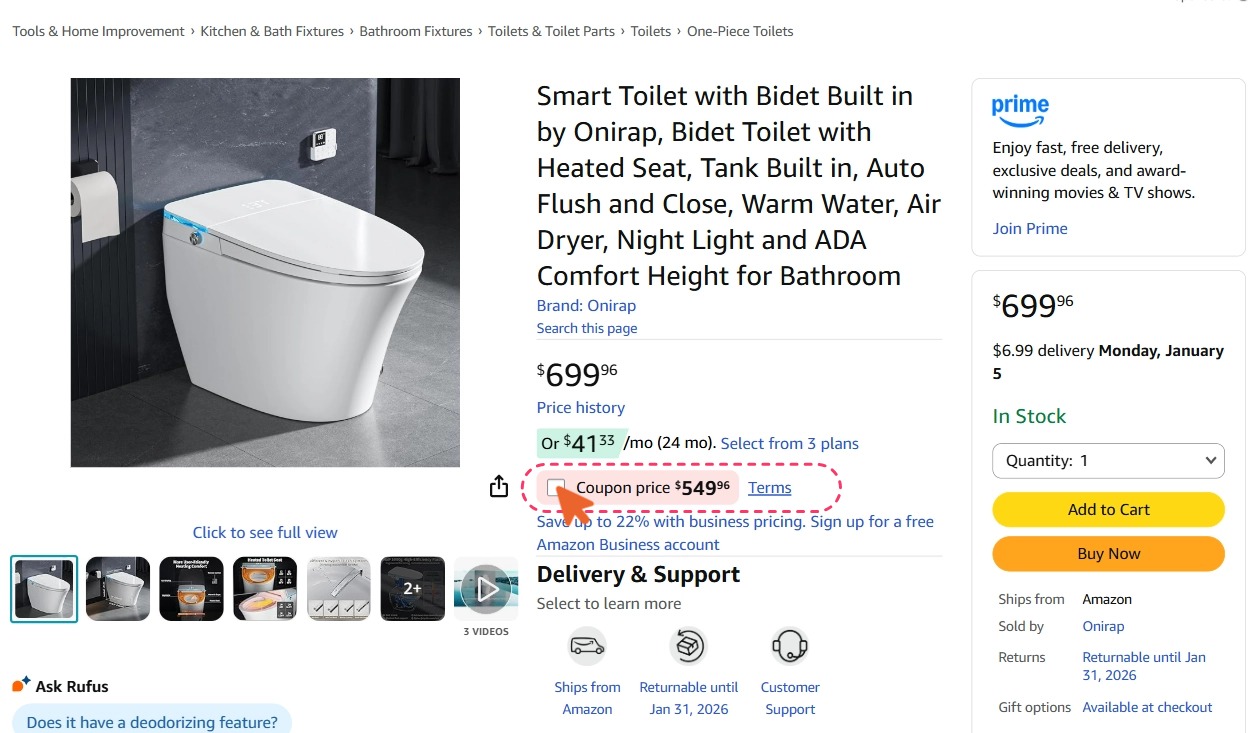
Check for Additional Coupons
Once you're on the Amazon product page, look for any extra on-page coupons to unlock additional savings. If you see a coupon checkbox, like "Apply $X coupon", make sure to clip it before adding to cart.
Check for Additional Coupons
3
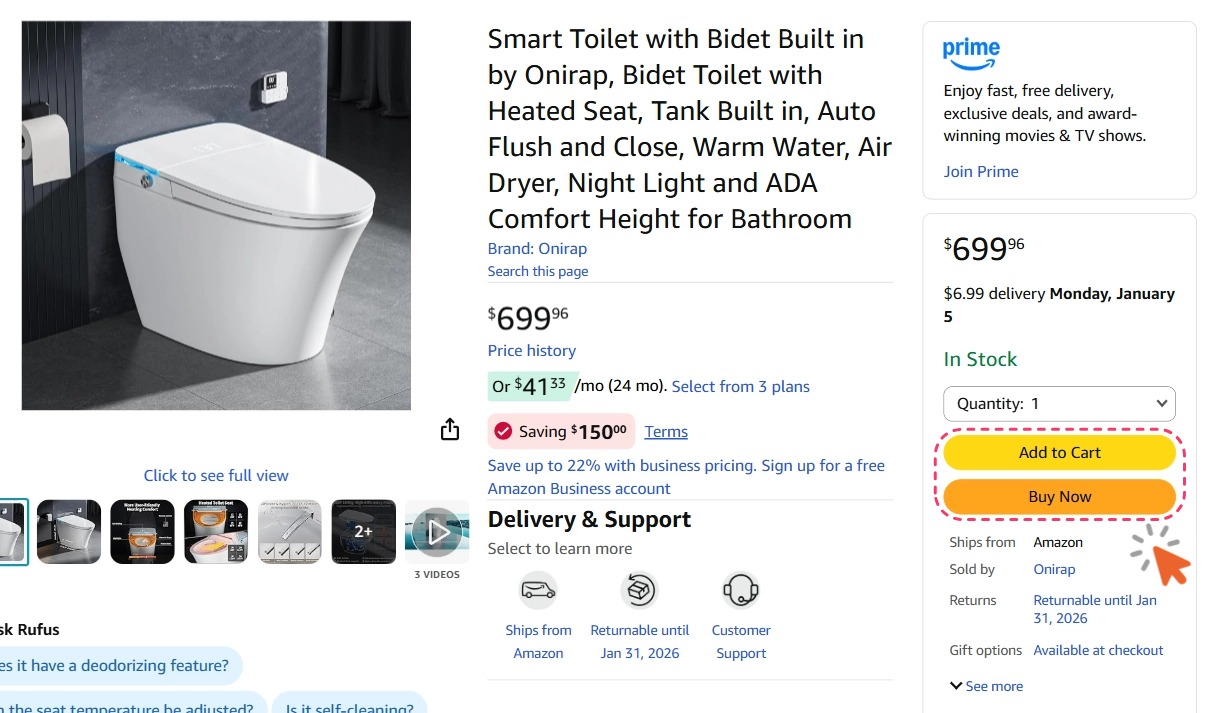
Add the Item to Your Cart or Buy Now
After clipping any available coupons, you can either:
Click "Add to Cart" to add the item to your shopping cart
Click "Buy Now" to proceed directly to checkout
Add to Cart or Buy Now
4
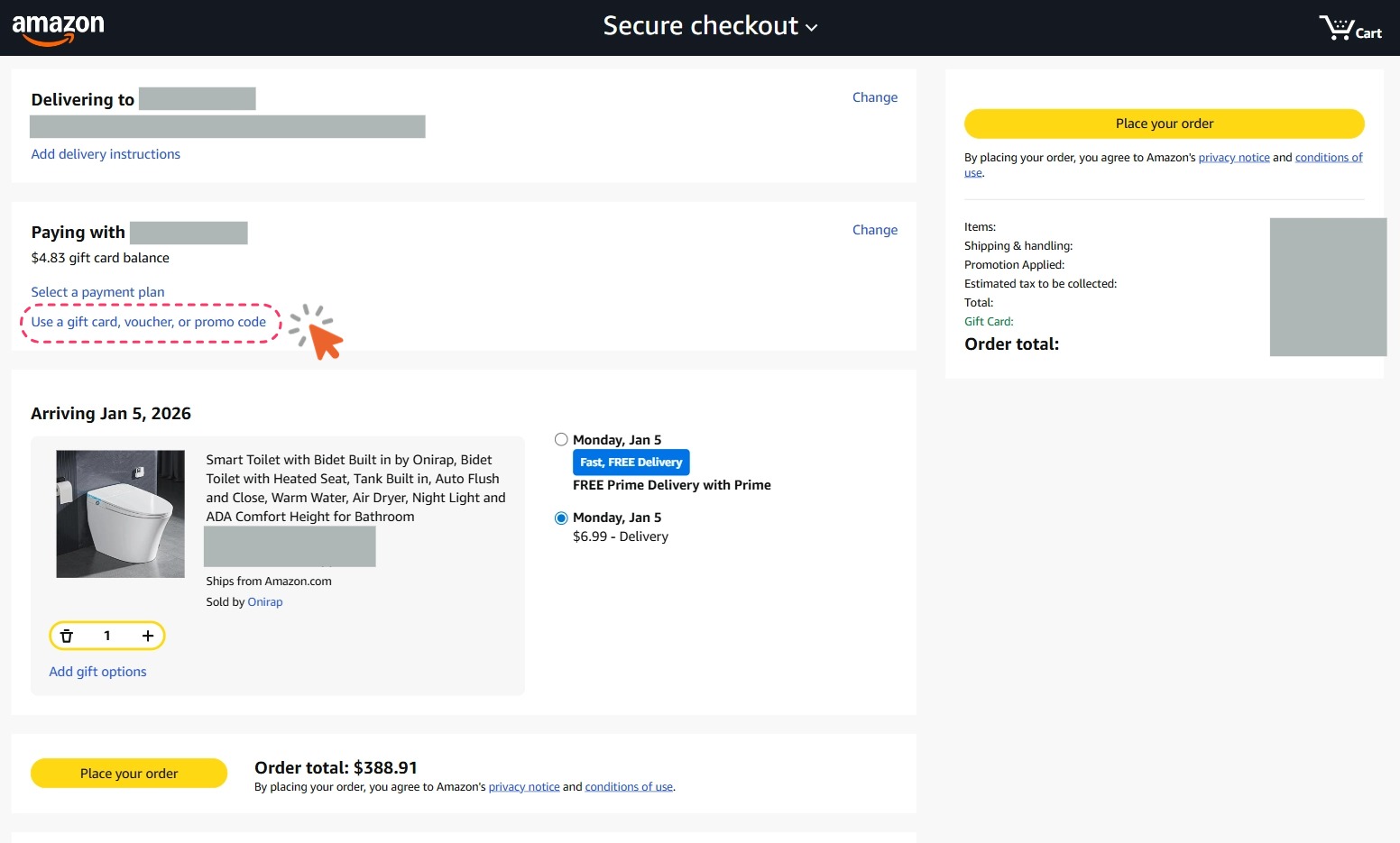
Navigate to the Promo Code Section
On the checkout page, look for the section labeled "Paying with". Click "Use a gift card, voucher, or promo code" to open the promo code input page.
Click Use Promo Code
5
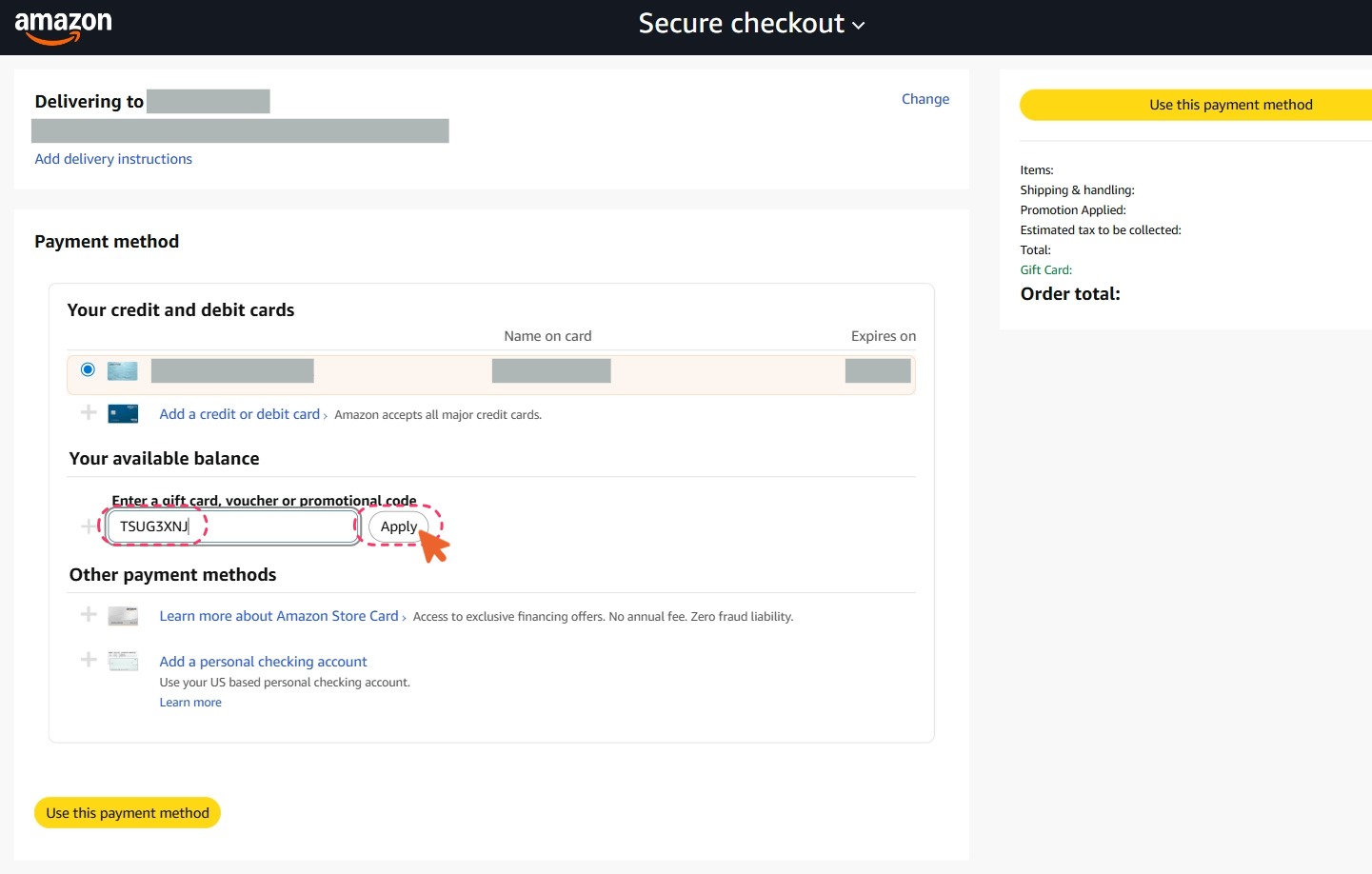
Enter Your Promo Code and Apply
Under the "Payment method" section, look for "Enter a gift card, voucher or promotional code", paste your promo code from Deal Radar into the text field, then click "Apply".
Input Promo Code and Click Apply
6
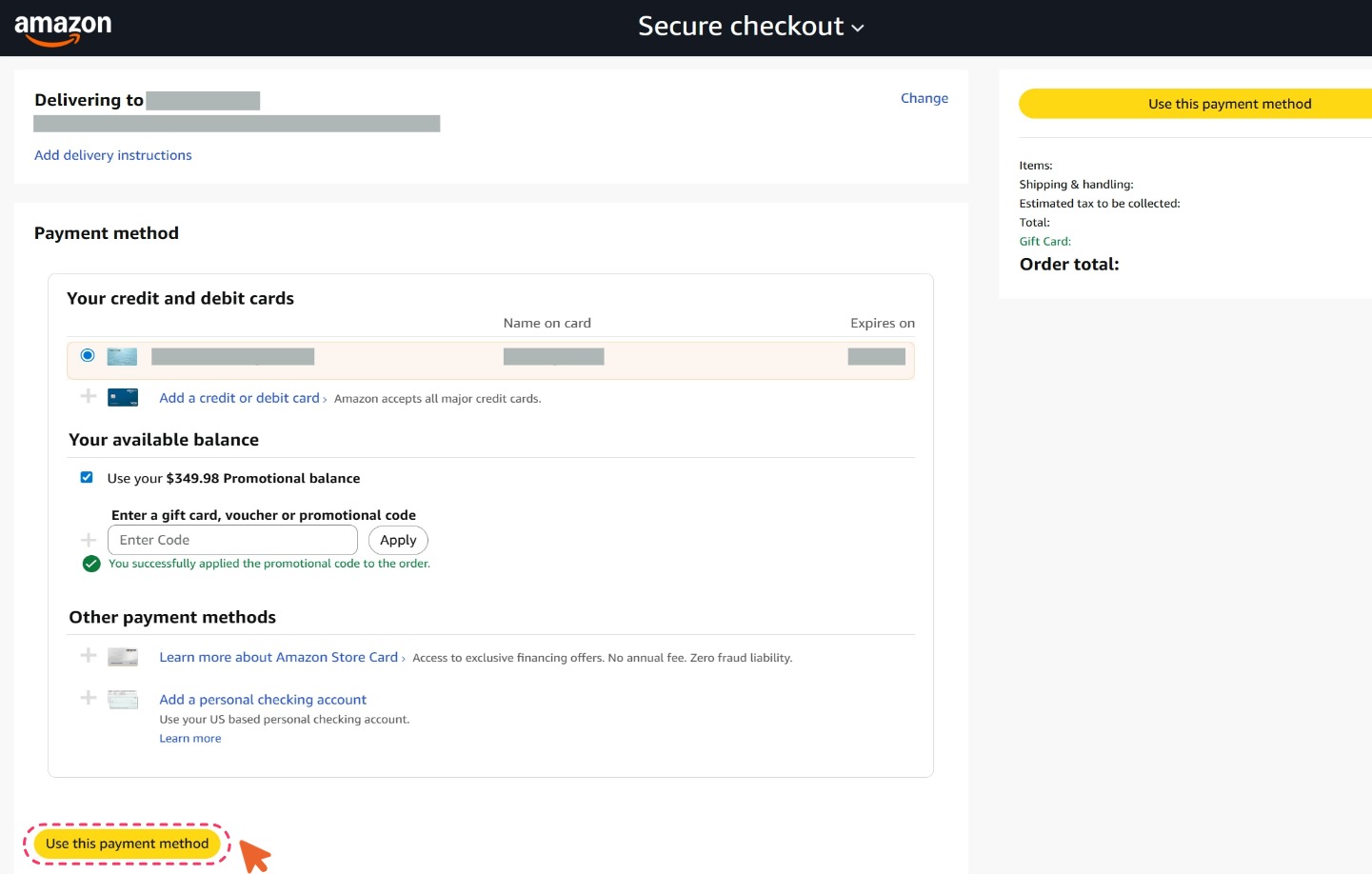
Confirm the Discount Applied
Once the promo code is successfully applied, you'll see a confirmation message. Click "Use the payment method" to continue.
Promo Code Successfully Applied
7
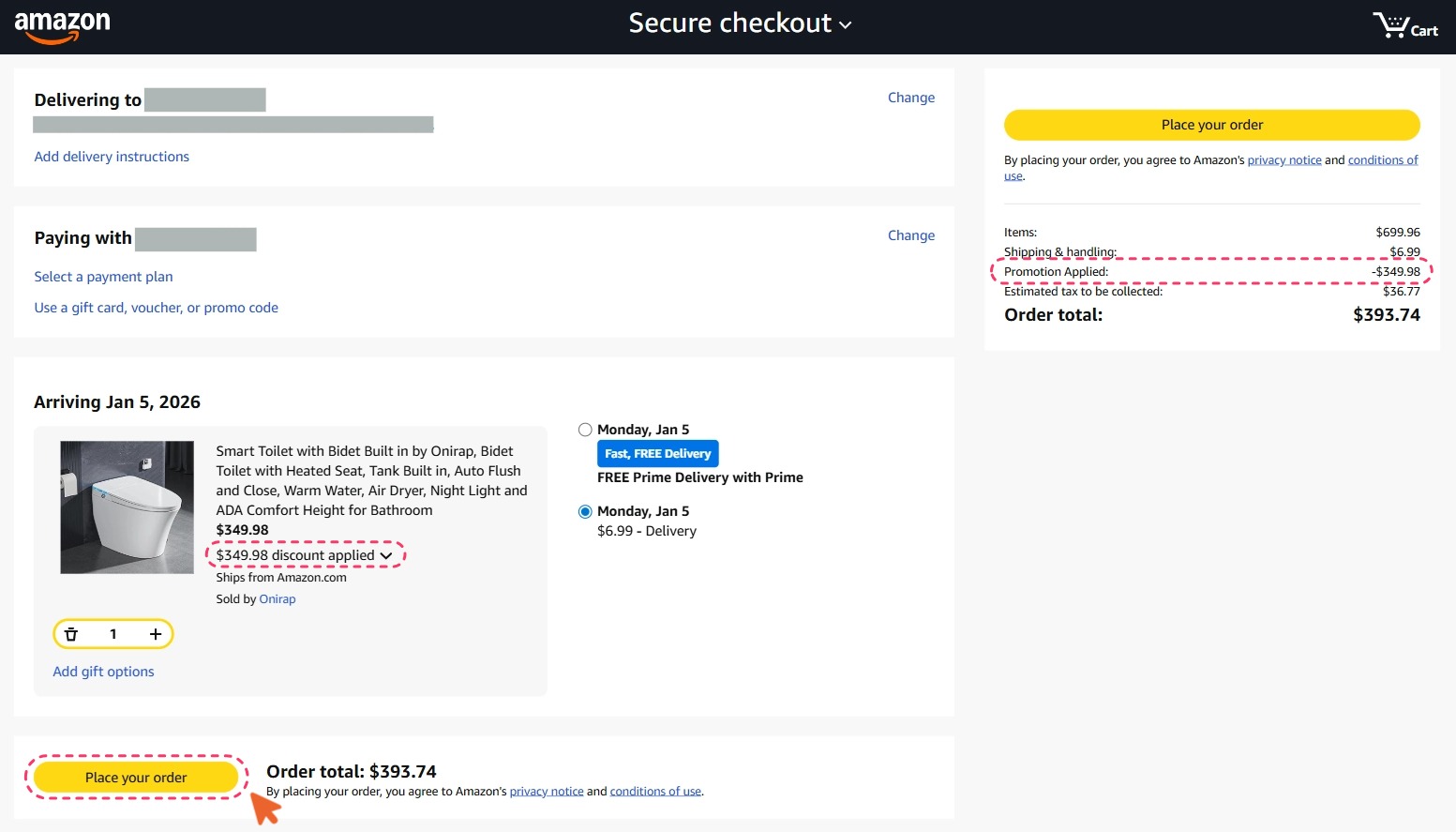
Place Your Order
Review your order details, make sure the discount has been applied correctly, and click "Place your order" to complete your purchase.